Msn Errors Are you looking for Windows Live Messenger and MSN fixes? This is right place for you!
Msn Errors
Showing posts with label other fixes. Show all posts

Turn off or Disable Windows Live Messenger Photo Sharing

When you are try send a photo or an image to friend using built in file transfer feature your image appears in a photo sharing box.


To avoid this from happening simply drag and drop your image to contact's name from your contact list.

Windows-Live-Messenger-MSN-Photo-Transfer

Now you will be able to transfer your images the way you used to!

MSN Photo Transfer

Poor audio quality in Windows Live Call

If you experience poor audio quality, distortion, or echoing in Windows Live Call, try the following:
Run Audio and Video setup again

1. On the Tools menu, click Audio and Video setup.
2. Follow the instructions in the wizard.
3. When you reach the end of the wizard, click Finish.

Adjust your microphone

1. On the Tools menu, click Audio and Video setup.
2. Follow the instructions in the wizard. Use the slider to adjust the volume of your microphone.
3. When you reach the end of the wizard, click Finish.

If your broadband connection runs at 256 kilobits per second (Kbps) or less

1. On the Tools menu, click Options.
2. Select the Optimize my experience for a low-bandwidth broadband connection check box, and then click OK.

Notes

* If you are using USB 1.1, you may experience poor quality when you use both audio and video at the same time. You will receive the best quality audio and video when you connect your USB device directly to your computer.
* We recommend that you make computer-to-phone calls only over a broadband connection.
* If you are downloading large files or running other programs during your call, the quality of the call may deteriorate. Close other programs and file downloads to conserve bandwidth.
* Windows Live Call network performance can also affect the quality of your call. To check the status of the network, go to the Windows Live Call Network Status website.

Repair Windows Live Messenger

1. In the notification area on the taskbar (near the clock), click the Messenger icon, and then click Exit.
2. On the taskbar, click Start, and then click Control Panel.
3. Double-click Add or Remove Programs.
4. Under Currently installed programs, click Windows Live Messenger, and then click Change.
5. Click Repair.

Contacts can't See your Music

To share song information with your contacts, you need to set up Windows Live Messenger and Windows Media Player to work together.

Set up Messenger to work with Windows Media Player

1. On the Tools menu, click Options.
2. In the left pane, click Personal.
3. Under My Display Name, select the Show song information from Windows Media Player as a personal message check box.
4. Click OK.

Set up Windows Media Player to work with Messenger

1. Start Windows Media Player.
2. On the Tools menu, click Options.
3. Click Plug-ins.
4. In the left pane, click Background.
5. In the right pane, select Windows Live Messenger Music Plug-in.
6. Click OK.

Notes

* This feature is compatible only with Microsoft Windows 2000 or later.
* This feature is compatible only with Windows Media Player 9 or later.

Windows Media Player and Messenger - Now Playing Plugin


Where do I find the plug-in for Windows Media Player that lets me show contacts what music I'm listening to on Windows Live Messenger?

Open Windows Media Player. In Tools menu you'll see Plug-ins. Check Windows Live messenger Music Plug-in.
And in Live Messenger, under your status you have and a down arrow. Click the arrow and select Turn On "What I'm listening too"

Solution 2:

1) Enable the Now Playing option in MSN,
2) Go to your MSN Messenger (Windows Live Messenger) folder in Program Files,
3) Find the "msgrapp.dll" file,
4) Copy it to your Windows Media Player 11 folder (in Program Files too),
5) Restart your play

For Windows Media Player 11, do the following:

1) Open Windows Media Player 11

2) Under the "Now Playing" tab, click "more Options"

3) In the "Plug-ins" tab there will be a category list box. In that list box click Background. To the right of it should be the "windows Live Messenger Music Plug-in" Make sure that is checked.


MSN contact list is full

When trying to add a new contact to your list MSN Messenger tells you that your contact list is full.

MSN Messenger currently has a limit of 150 contacts. If you have 150 contacts in your list there is simply no way to add more new contacts. This amount might be increased in the future. In march it was increased from 100 to 150.
If you have an amount of contacts that is below the maximum amount and yet, you are not able to add a new one, this is most likely a server side issue that may show up after adding and deleting contacts for some time. Usually, this problem fixes itself after some time.
When you really need over 150 contacts or are not able to add new contacts the only thing you can do for now is to create one or more extra MSN Messenger accounts. Using a so called "polygamy patch" or a client like Trillian you can be signed in with more then one account at the same time.

MSN remove previous login names

Delete previous login names:

  • Press start.
  • Then Control Panel.
  • Then User Accounts.
  • Pick your Account Example Guest or the account you log with.
  • Then click on Manage my network passwords under the Related Task Block.
  • Then hieghlight the email you want to remove.
  • Then press Remove.
  • Then press Ok.
  • Then Close.

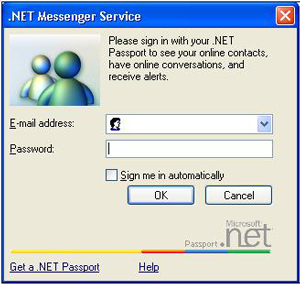
"Sign me in automatically" checkbox is missing in MSN Messenger

The "Sign me in automatically" checkbox is missing and you have to retype your username and password each time to get online in MSN Messenger. This is probably caused by a security setting which does not permit storing passwords on your computer. If you have sufficient rights (you are an administrator) on your computer you can reset this setting by running this file.

The following message could not be delivered to all recipients

This has been notified - do not panic, it is not just you. This problem has been happening for a few days to many people. Msn is aware (see their homepage) and are fixing the problem. Should be fixed within the week.


Use webmessenger until we figure out how to solve it.

http://webmessenger.msn.com or http://iloveim.com

Check also MSN Service status: http://status.messenger.msn.com/Status.aspx


Update: It seems the service is returning to normal. I would suggest signing out and back in again if you are still receiving the error. Apparently engineers investigated the problem and found a fix.

If none of these methods listed above won't work, we recommend you to run registry fix tool.

Msn Messenger Plus It's a Virus

Msn-9.0plus.exe -- It's A Virus!

Do not click on that link!

There's been a lot of virii floating around the MSN Messenger Network lately. Some of them include links that pop up saying things like;

Hej, did you download the new MSN yet?
lol check out MSN Plus...it ownz!
Automessage : Download MSN Plus:
lol, this is awsome...
Want more msn emotions?
MSN 8.0 Beta released....get it here
Hej, wanna update your Messenger
dude, this is awesome... a must see!
lol I just updated my Messenger and I must say IT ROCKS!
Check this out mate, it roxxx

Never click on these links when someone sends you one. The typical result is a virus infection. In the case of the links above the result is a W32/Antix-A infection

Slow Typing on Sign-in Screen?

Windows XP users

Go to command prompt and type in the following OR go to Start -> Run and then copy and paste each line below hitting after each one.

regsvr32 Dssenh.dll /s
regsvr32 Gpkcsp.dll /s
regsvr32 Slbcsp.dll /s
regsvr32 Sccbase.dll /s
regsvr32 Softpub.dll /s
regsvr32 Wintrust.dll /s
regsvr32 Initpki.dll /s
regsvr32 Rsaenh.dll /s
regsvr32 Mssip32.dll /s
regsvr32 Cryptdlg.dll /s
regsvr32 Msxml3.dll /s

What these statements do is re-register the cryptographic files for Windows XP. Usually blown encryption is an effect caused by a virus or SpyWare infection.